The picker
The magnifier, and what you can do while it's open.
Press ⌥⌘C and a magnifier follows the cursor. It shows the pixels under it enlarged, a crosshair on the one you’ll get, and the color’s value in your default format. Click to take it.

Exact pixels
Dabbit reads the pixel from the screen buffer, through the display’s color profile, so what you copy is the value the app underneath actually drew. #ff0000 in a web page picks as #ff0000 on a P3 MacBook display, not the slightly different number a screenshot would give you. How that works, and when you’d want to change it, is in Color management.
Zoom, aperture, freeze
- Zoom with ⌥-scroll or = / −, from 2× to 16×. The default is 6×; set it in Settings → Picker.
- Aperture: press 1 for one exact pixel, or 3, 5, 7 to average a small square. Averaging is for noisy things like photos and gradients, where one pixel is arbitrary.
- Freeze with Space. The loupe stops following the screen, so you can pick from something that disappears when the mouse moves: a hover state, a tooltip, a menu.
- Nudge with the arrow keys, one pixel at a time (ten with ⇧), when the exact pixel matters more than a steady hand.
- Grid with G, to see pixel boundaries at high zoom.
- Loupe size with a pinch on the trackpad or ⌘-scroll, or Settings → Picker → Picker size.
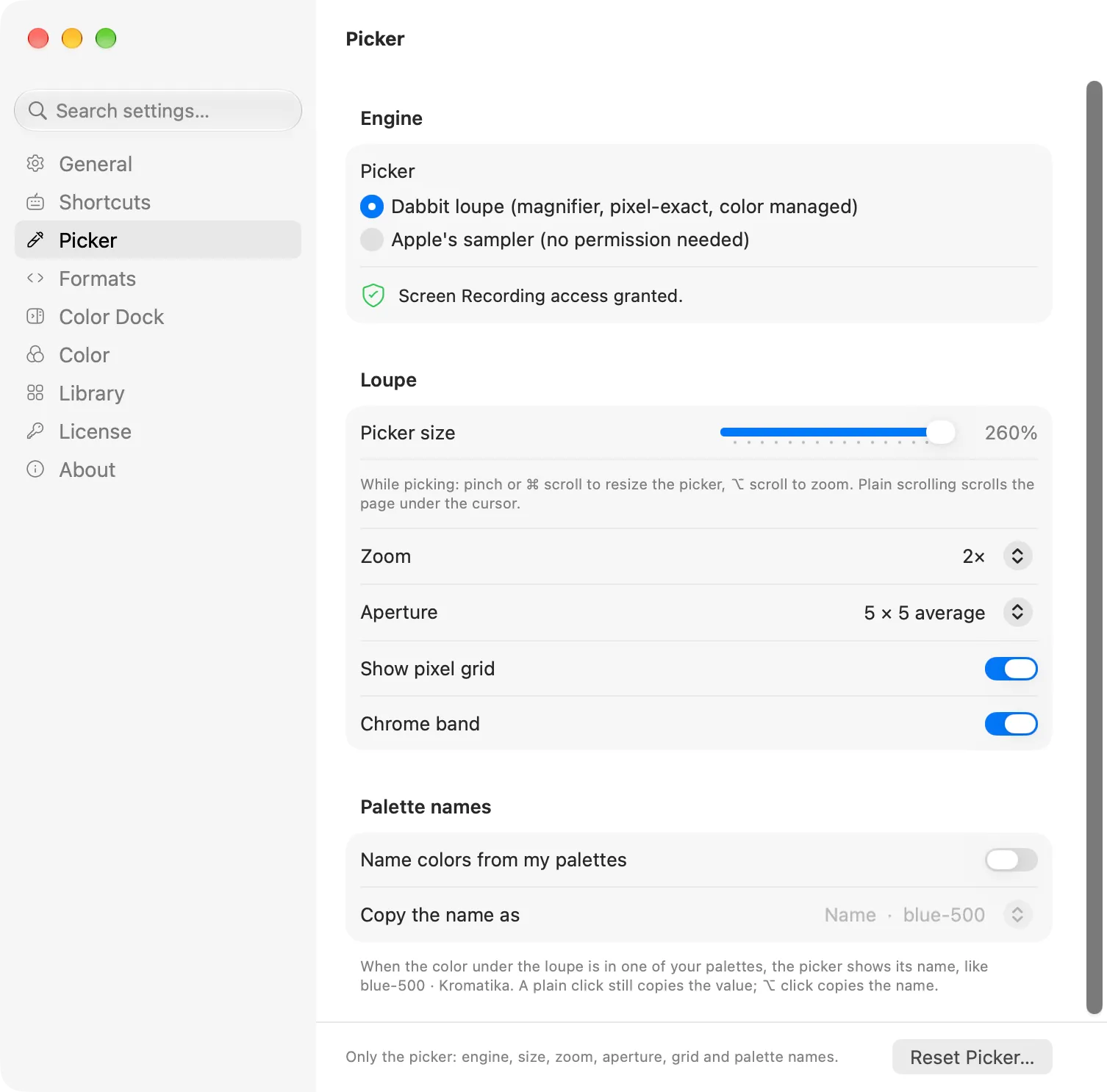
Plain scrolling isn’t captured. It scrolls whatever is under the cursor, so you can pick from further down a page without closing the picker.
Picking several
⇧-click (or ⌘C) takes the color and keeps the picker open. Each one is copied and added to Recent picks; the last one stays on the clipboard. Esc when you’re done.
Names instead of values
If you keep your project’s colors as Dabbit palettes, the picker can tell you which one you’re looking at. Turn on Name colors from my palettes in Settings → Picker and the loupe shows the matching name (say blue-500) when a picked pixel is in one of your palettes. ⌥-click copies that name instead of the value. Copy the name as chooses the shape: plain name, var(--blue-500), $blue-500, or bg-blue-500.
What happens after a pick
By default the color is copied to the clipboard in your default format, added to Recent picks, a small confirmation appears, and a sound plays. Each of those is a switch in Settings → General (eight sound packs to choose from, or none). See Formats for what gets copied and Library for where picks go.
Apple’s sampler
If you don’t want to grant Screen Recording, choose Apple’s sampler in Settings → Picker. Dabbit then uses the system eyedropper, which needs no permission. You lose the loupe, zoom, aperture, freeze and naming, but the color still lands in your formats and history.