Library
Recent picks, palettes, sub-palettes, and getting colors in from images, websites and files.
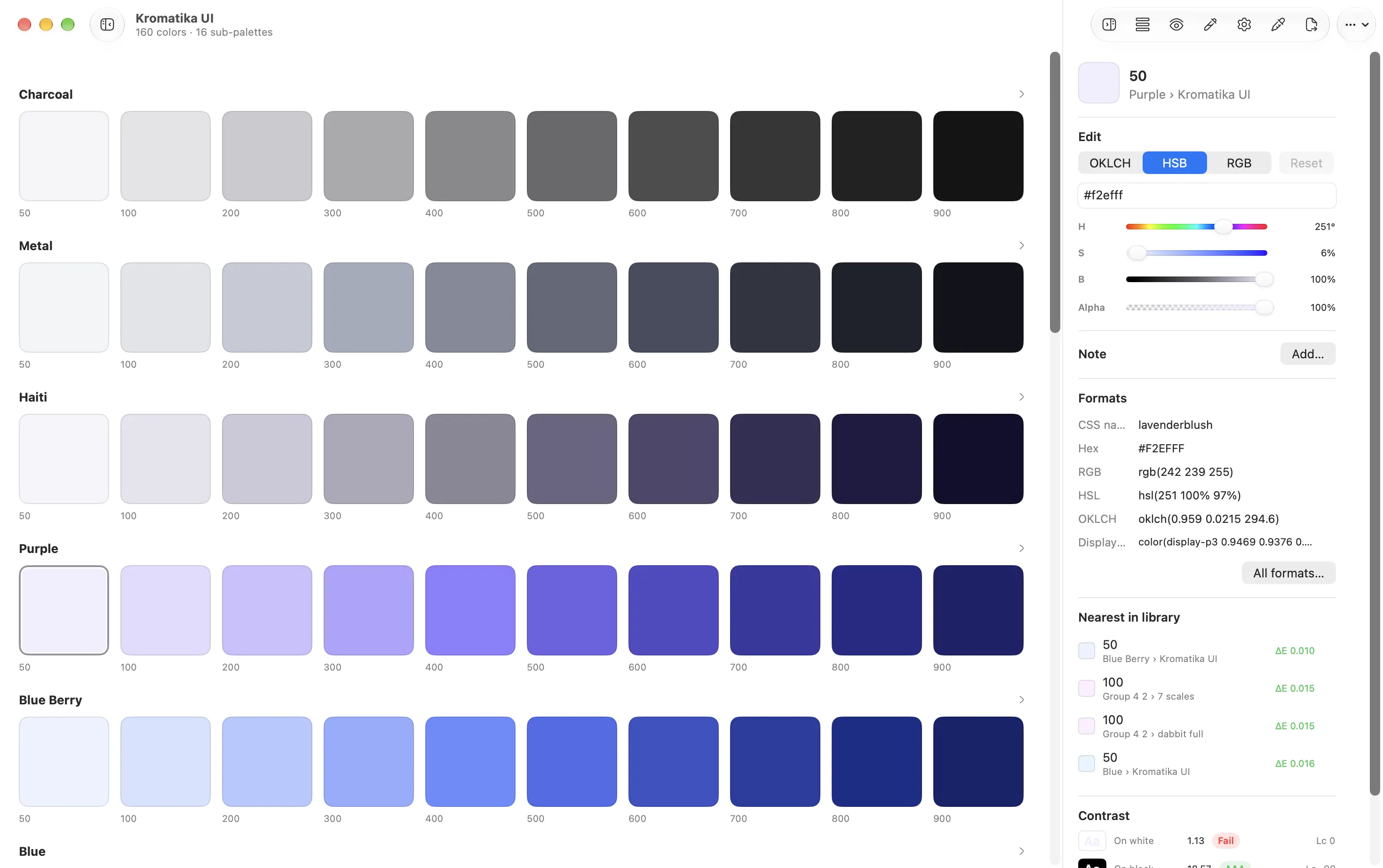
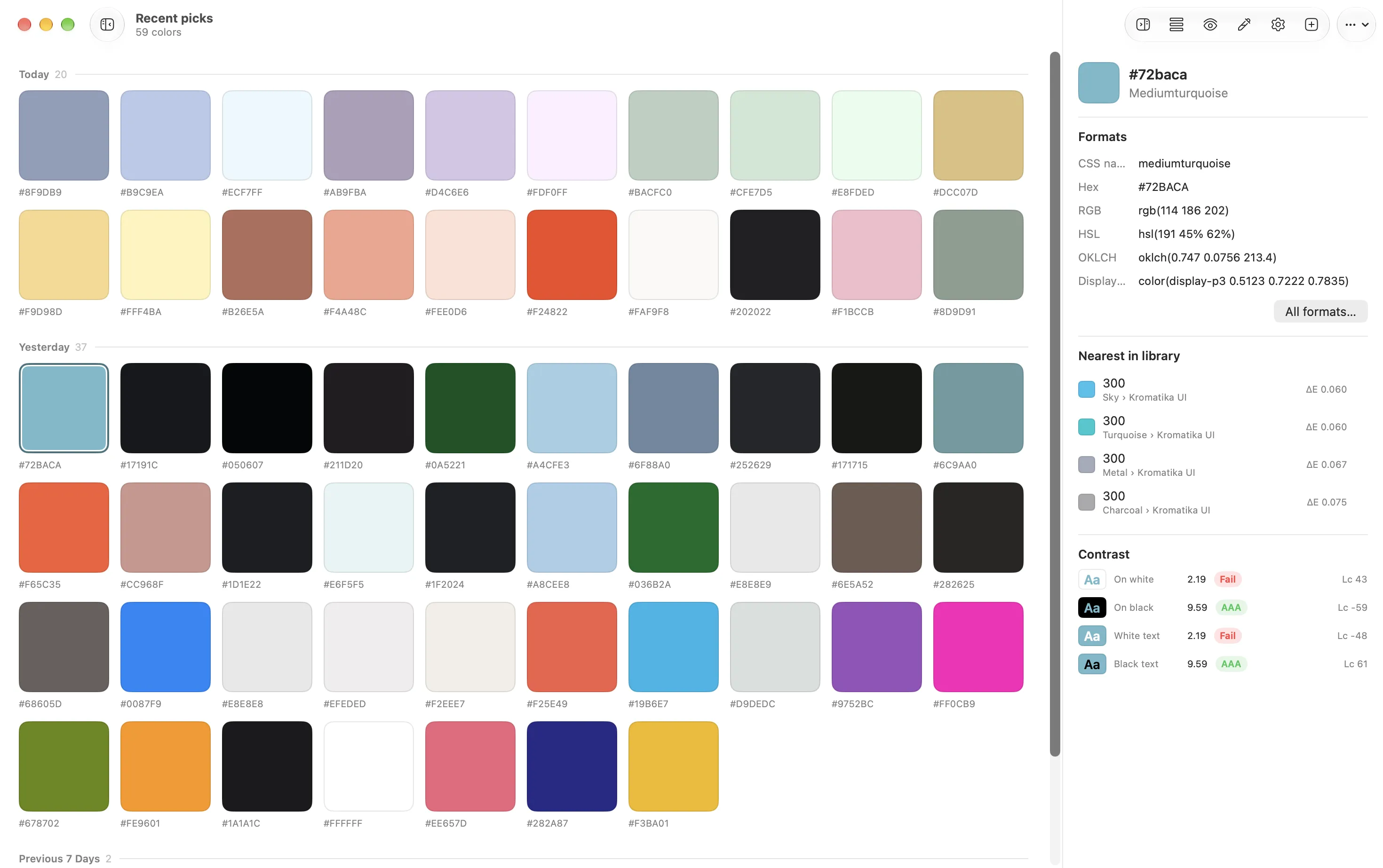
The library window (⌘-click the menu bar mark, or Open Library) has three parts in its sidebar: Recent picks, your Palettes, and the Tools (the two generators, covered in Generator).
Recent picks
Every pick lands here with its time and the app it came from, as a grid or a list. Dabbit keeps the last 200 by default; Keep N recent picks in Settings → General goes from 20 to 1000. From here you can copy in any format, drag colors into a palette, Save as palette to turn a selection into one, or Clear… the lot.
Palettes
A palette is a named list of colors. Make one with New Palette (⌘N), then add colors by dragging from Recent picks or another palette, with Add current color, or from the Color Dock’s Add to Palette.
Palettes can hold sub-palettes, one level deep, which is how a design system fits: a Brand palette with Blue, Gray and Red scales inside it. Those scales then show up as groups in the Color Dock, in exports and in the Figma plugin.
Per palette (right-click, or the ⋯ menu):
- Rename (or double-click the name)
- New sub-palette
- Add current color
- Edit in Scale / Design System, for palettes a generator made: reopens them with their settings so you can change a step count or a range and regenerate
- Export…, see Exporting
- Show in Color Dock
- Delete…, with a confirmation
Per color: rename, duplicate, move between palettes, set as the current color, copy in any format.
From an image, camera or website
New Palette from Image, Camera or Website… (⇧⌘N) builds a palette from something that isn’t on your screen:
- Image: drop or choose a file, or paste one. Dropping an image anywhere on the library window does the same.
- Camera: take a photo with the Mac’s camera and extract from that. Useful for a physical object, a printed sample, a wall.
- Website: enter a URL; Dabbit fetches the page and its stylesheets and lists the colors they declare. This is the one feature that makes a request outside your Mac, and only to the address you type.
Extraction clusters the pixels in OKLab, so the groups follow perceived difference rather than raw RGB distance. Dominant ranks by how much of the image (or how many rules of the stylesheet) each color covers; Vibrant lets saturation count too, so an accent on a white page survives. Choose the colors you want and save them as a palette.
From a file
Import Palette… (⇧⌘I) or drop a file on the window:
- Dabbit JSON, from an export or another Mac.
- CSS with custom properties (
--blue-500: #0d75ee;), including a Tailwind@themeblock. - Design tokens JSON: the W3C format (
$value/$type), Tokens Studio, and the variables2json export from Figma. Groups and collections become sub-palettes. - Plain text with one color per line.
CSS and tokens imports stay linked to their file: the palette shows a small code glyph, and its menu has Reload from File to pull in changes and Unlink to make it a normal palette. That makes a project’s tokens.css a live palette you can pick from and name colors against.
The Kromatika palette
Dabbit includes its own UI palette, Kromatika, as an example of a full system with scales and neutrals. If you delete or change it, Settings → Library → Restore brings the original back.