Color Dock
A floating strip of the colors you're working with, always on top.
The Color Dock is a thin panel of swatches that floats above your other windows: your recent picks, and any palettes you choose. It’s for the stretch of work where you’re moving the same dozen colors between apps and don’t want to open the library each time.
It’s off by default. Turn it on in Settings → Color Dock, or press ⌥⌘D.

What’s on it
- Recent picks: the last 12, newest first. Always there.
- Palettes: add any of yours under On the dock in Settings, or from a palette’s menu in the library (Show in Color Dock). A palette shows up to 60 swatches.
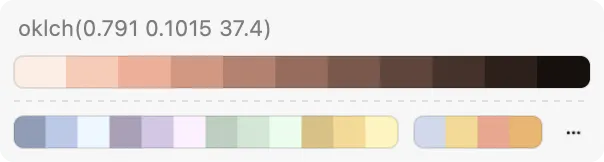
Using it
- Hover a swatch for its value in your readout formats; for a palette color, its name and the scale it belongs to.
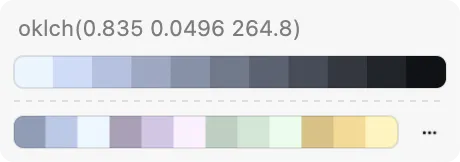
- Click copies it in your default format.
- Right-click for Copy, Copy as (any format), Use as Current, and Add to Palette.
- Drag the dock anywhere; it remembers where you left it.
- The dock’s own menu (right-click on empty space) has Pick Color, the palette list, Orientation, Open Library, Color Dock Settings… and Hide Color Dock.
Settings
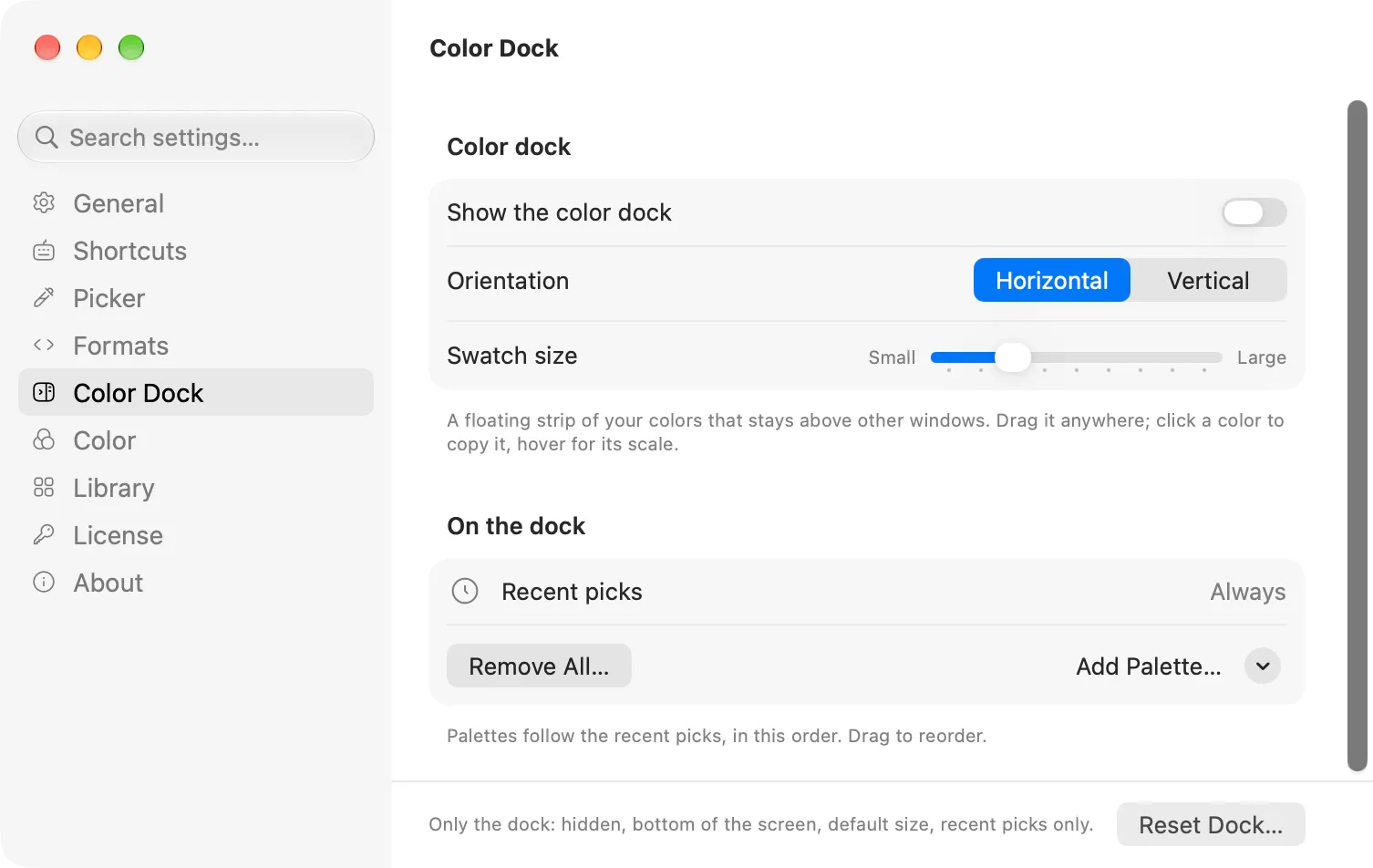
- Orientation: horizontal or vertical. Vertical fits well down a screen edge.
- Swatch size: from small to large.
- Show the color dock: the same switch as the shortcut.
The dock never takes focus, so clicking a swatch copies without leaving the app you’re in.