Backup and your data
Where Dabbit keeps things, how to back them up, and how to move to a new Mac.
Where it lives
Everything is on your Mac, in plain files:
~/Library/Application Support/app.dabbit/
  palettes/      one JSON file per palette
  tokens/        imported token sets
  history.json   recent picks
  formats.json   custom formats
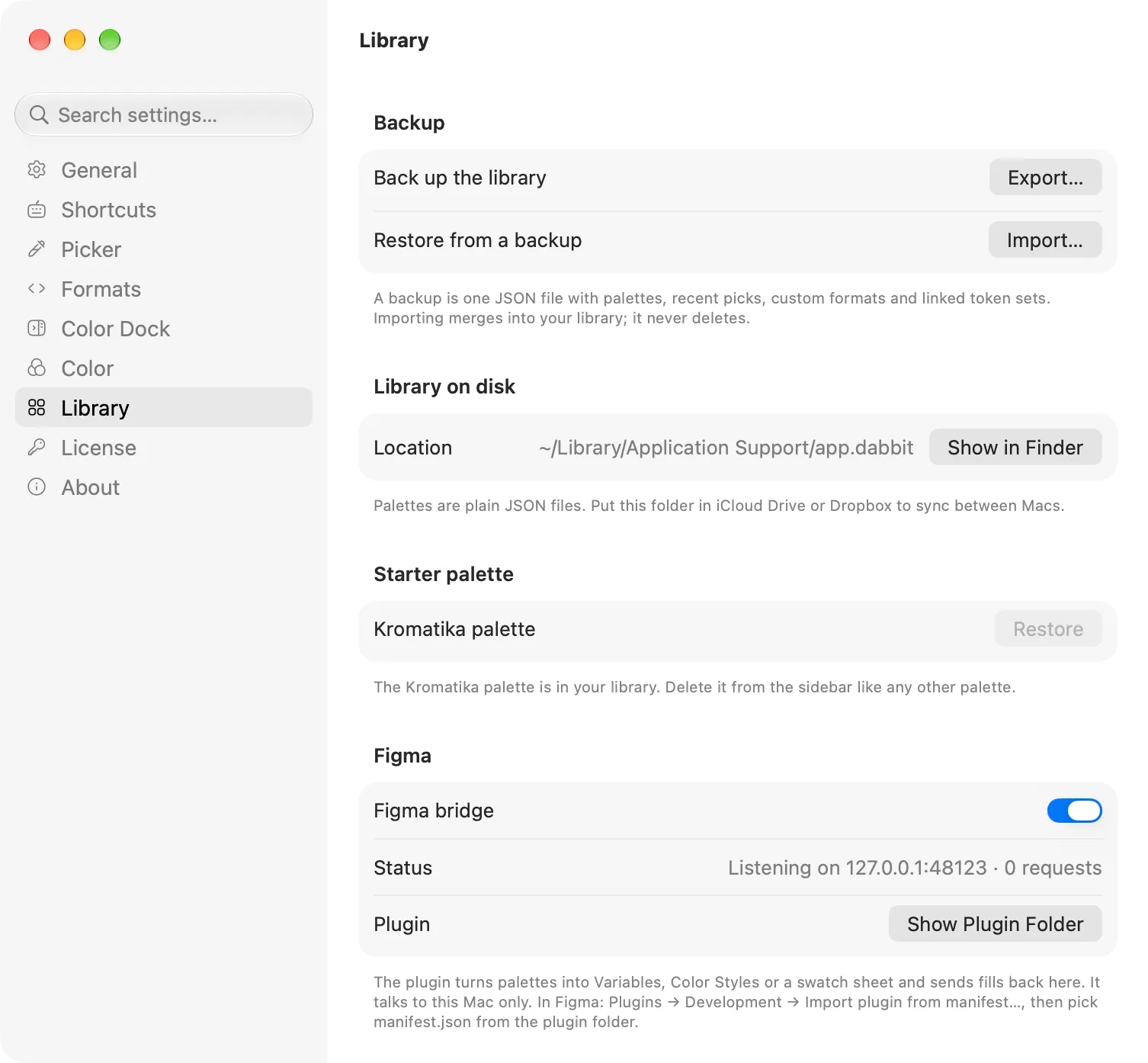
Settings → Library shows the path with a Show in Finder button; Help → Reveal Library in Finder does the same. Preferences (shortcuts, formats, dock, appearance) are in the app’s defaults, as with any Mac app. Time Machine and any file-level backup cover all of it.
Back up and restore
Settings → Library → Export… writes one JSON file with every palette, your recent picks and your custom formats. Import… reads one back. Import merges: it adds what’s missing and never deletes anything already there, so it’s safe to import an old backup over a current library.
Moving to a new Mac
- On the old Mac: Settings → Library → Export…, and Settings → Account → Deactivate this Mac….
- On the new one: install Dabbit, Import… the file, and activate your key.
Custom formats come across in the backup; shortcuts and other preferences are quick to set again.
Reset
Settings → General → Reset Settings… returns shortcuts, formats, picker, dock and appearance to their defaults. It leaves your palettes, recent picks, custom formats and license alone.
Settings → Library → Restore (next to the Kromatika palette) brings back the bundled palette if you’ve changed or deleted it.