Figma plugin
Palettes into Figma as variables, styles and sheets; colors back out; picks straight onto a layer.
The Dabbit plugin connects Figma to the Dabbit app running on the same Mac. There’s no account and no server: the plugin talks to the app over localhost, on your machine.
Setup
- Install the plugin from the Figma Community.
- Have Dabbit running. The Figma bridge switch in Settings → Library is on by default; the plugin says Connected in its top bar when it can reach the app, and offers Try Again with instructions when it can’t.
- Open the plugin in any Figma file: Plugins → Dabbit.
Drag the corner of the plugin window to resize it, and use Aa in the top bar (or ⌘= / ⌘−) for larger text. The plugin remembers the size, the text size and your generator settings between sessions.
A copy of the plugin also ships inside the app, for a Mac without Community access: Settings → Library → Show Plugin Folder, then in Figma, Plugins → Development → Import plugin from manifest.
Palettes tab
Your Dabbit palettes, each as a preview strip. Open one for:
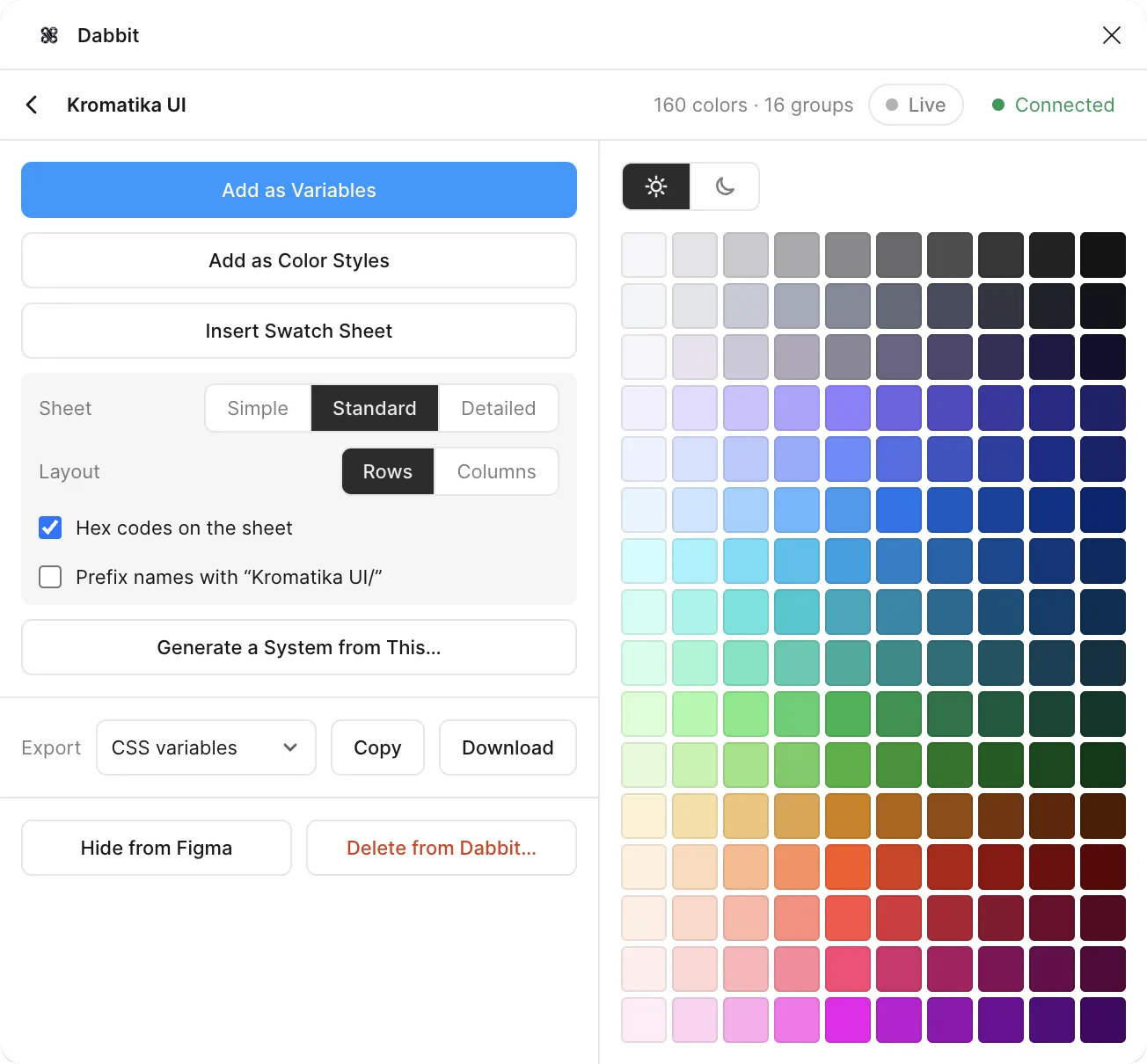
- Add as Variables: a variable collection named after the palette, with one color variable per swatch. Sub-palettes become groups (
Blue/500). - Add as Color Styles: local paint styles with the same names.
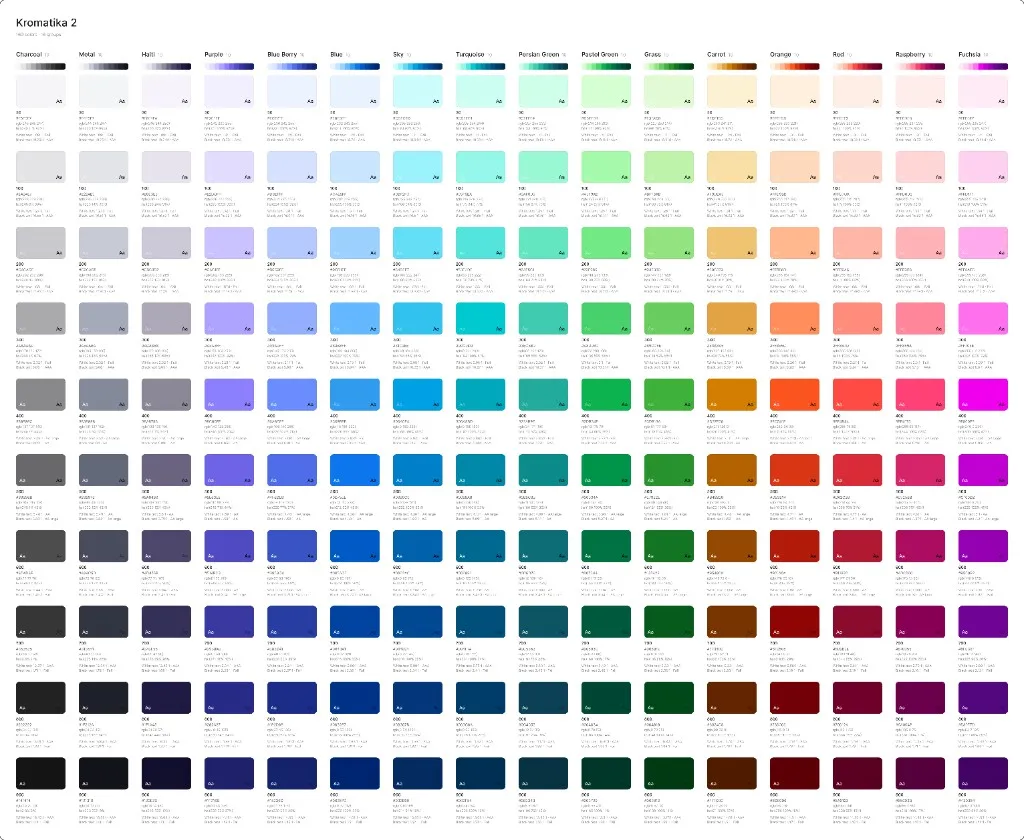
- Insert Swatch Sheet: a frame on the canvas laid out from the palette. Sheet sets the detail: Simple is tiles only, Standard adds names (and hex codes if you keep that on), Detailed adds a lightness ramp, RGB and HSL, and text contrast against white and black. Layout puts each group on a row or in a column.
- Prefix names with “Palette/” nests everything under the palette’s name, for files that hold several systems.
- Generate a System from This… sends the palette’s colors to the Generate tab as seeds.
- Hide from Figma takes a palette off the plugin’s list without touching the app; Show hidden brings it back. Delete from Dabbit… removes it for real, after a confirmation.
- Export: any of Dabbit’s export formats to copy or download, without leaving Figma.
Clicking a swatch in the grid fills the selected layer with it; ⌥-click sets the stroke.
Dark mode
The Light | Dark switch shows the palette’s dark-mode counterpart: every scale mirrored in lightness, with chroma eased on the darkest surfaces. A scale is any group of three or more shades whose lightness runs one way, so a light/base/dark triad counts. One-off colors have nothing to mirror and stay as they are; the plugin says so under the grid.
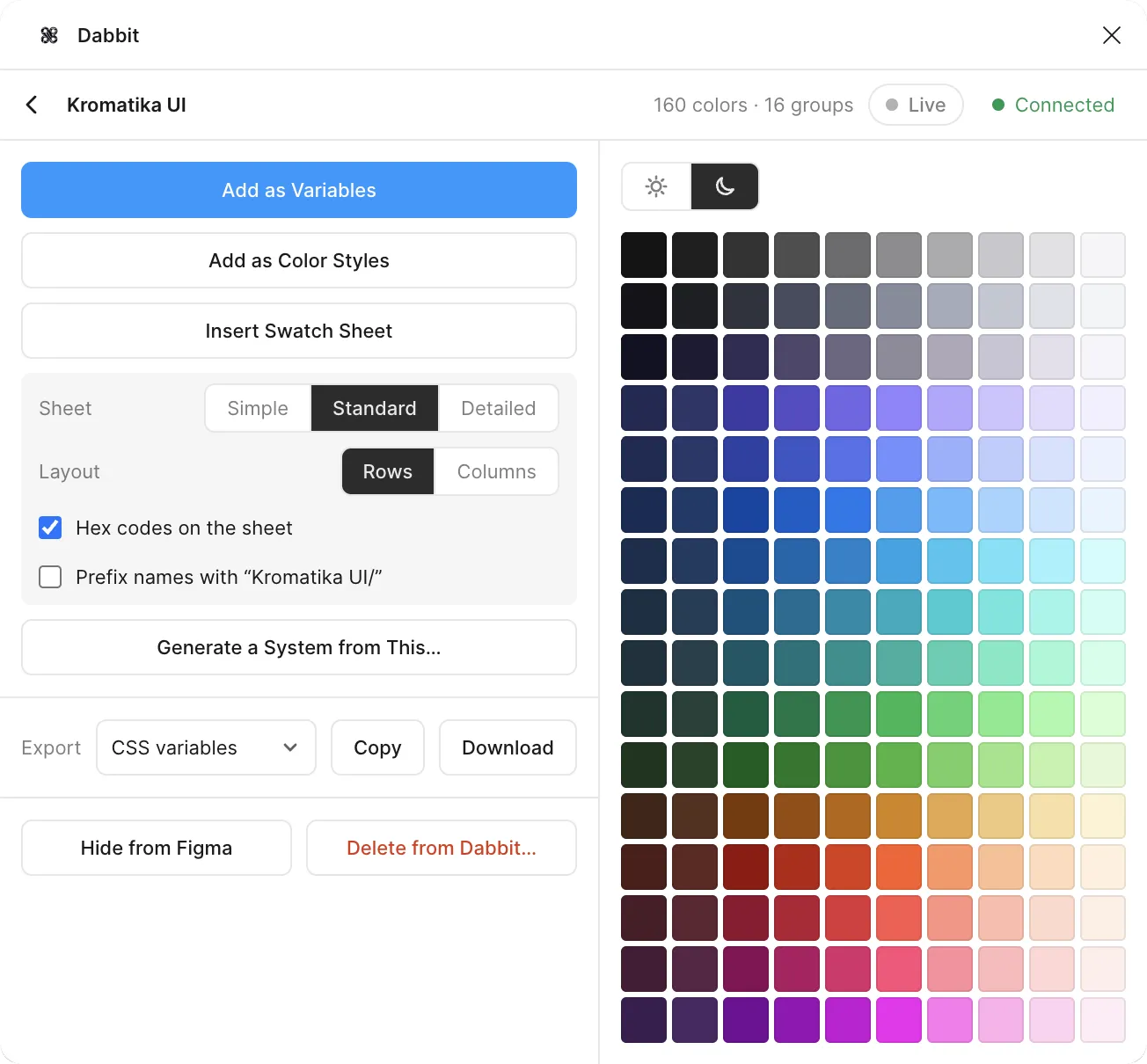
With Dark selected, Add as Variables creates a collection with two modes, Light and Dark, so switching a frame’s mode swaps every color at once. In a file that allows one mode (the Starter plan, or a file at its mode cap) the dark set goes into the same collection as Light/ and Dark/ groups instead, and the message says so. Styles get Light/ and Dark/ prefixes; sheets get a second row of dark swatches on a dark panel. Export follows the switch too: with Dark selected it writes the counterpart, named <Palette> Dark.
Send tab
Colors from Figma to Dabbit.
- Select layers. The tab lists their solid fills (and strokes and text colors when the selection is a group or frame that contains them). Dabbit’s own sheet frames are understood: select a single tile for one color, or the whole card for all of them.
- Send puts up to 24 colors into Dabbit’s Recent picks, each with its layer name. Save as Palette makes a palette of any size, keeping names.
- Read as a sheet: when the selection looks like a color sheet (tiles in rows or columns, with headings or step numbers), the plugin infers the structure from the layout, no layer naming needed, and saves it as a palette with sub-palettes and step names. This is how to bring an old hand-made swatch page into Dabbit intact.
- Local color styles at the bottom: Read Local Styles saves the file’s solid paint styles as a palette, grouped the way they’re named.
Generate tab
Dabbit’s generator, inside Figma.
- Scale or Design System mode. Seeds come from Add (type or paste, several at once), From Selection (one color per scale in the selection, read from names like
Blue/500or from the sheet’s layout), or a palette via Generate a System from This…. Scale mode takes up to 24 seeds (one scale each); Design System up to six. Remove all clears the list. - The same controls as the app: Steps and Range for scales; Hues, Shade names, Neutrals and Range for systems. The preview updates as you change them. Click a scale’s name in the preview to rename it.
- Then: Add as Variables, Add as Color Styles, Insert Swatch Sheet (with the same sheet options), Save to Dabbit to keep it as a palette, or Export.
Live
The Live button in the top bar turns the picker into a Figma tool. While it’s on, every color you pick on screen with Dabbit (⌥⌘C, anywhere) becomes the fill of the layer selected in Figma. Pick from a reference image, a website, another design file, and watch the layer update. Turn it off when you’re done, or it keeps following your picks.
Privacy
Figma’s network permission for the plugin is limited to localhost:48123. Nothing about your file or your colors goes anywhere but the Dabbit app on your own Mac.