Color management
Why Dabbit gives you the number the app used, and what the Color settings change.
The problem
Modern Mac displays are wide-gamut (Display P3). When an app draws #ff0000, macOS converts that sRGB red into the display’s colors before it reaches the panel. A naive picker reads the converted value back and reports something like #fb0007. Not what the designer wrote, and it drifts every time it’s picked and pasted.
What Dabbit does
Dabbit reads pixels through the display’s ICC profile and converts them back to sRGB, so a pick of #ff0000 gives #ff0000, on any display, with any profile. Colors that are genuinely outside sRGB (a P3 photo, a color(display-p3 …) swatch) are read as Display P3 and kept that way, and the loupe shows the screen in its full gamut, so a P3 yellow looks like the yellow on screen, not a paler sRGB one. That’s the default, What the display uses, in Settings → Color, and it’s right for almost everyone.
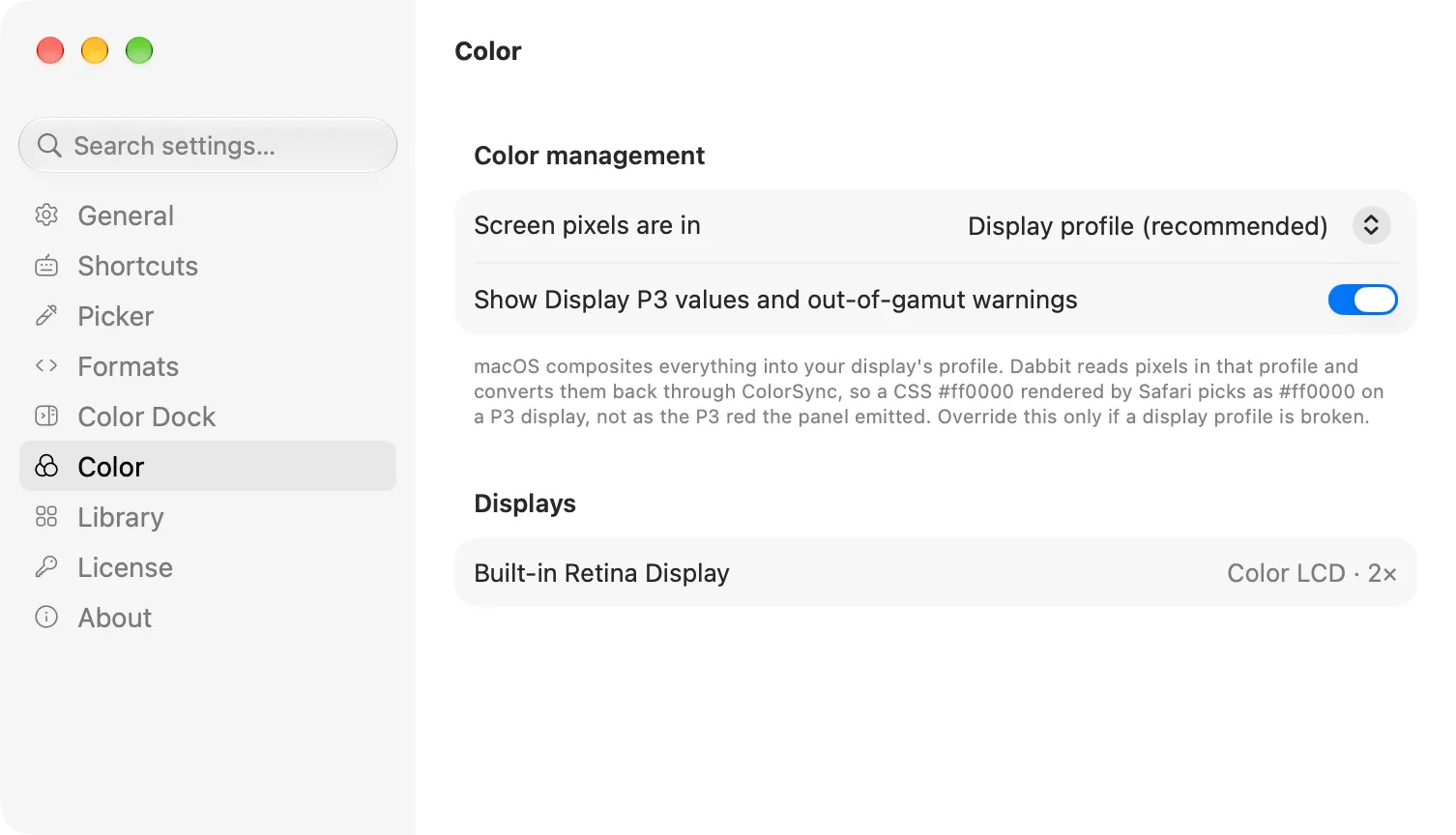
The two overrides are for unusual setups:
- Assume sRGB: treat screen pixels as already sRGB, skipping the conversion. For a display whose profile is wrong or missing, or when you want the raw framebuffer numbers.
- Assume Display P3: read every pixel as P3, sRGB content included. The default already keeps wide colors; this is for when you want the P3 numbers for everything, off-by-one and all.
The pane lists your connected displays with the profile and scale each one uses, which is a quick way to spot a display running the wrong profile.
Out-of-gamut colors
With Show Display P3 values and out-of-gamut warnings on, a color that can’t be expressed in sRGB is flagged in the loupe and readout with its P3 value (outside sRGB · color(display-p3 …)). Hex and RGB formats clip it to the nearest sRGB color; the Display P3, Hex (Display P3) and SwiftUI (P3) formats keep the full value.
A Figma file set to Display P3 shows its hex values in P3 coordinates, so its #FFFF24 is not the sRGB #FFFF24. To read the numbers Figma shows, copy as Hex (Display P3); the plain Hex format gives the sRGB color, which for a wide yellow is the clipped #FFFF00.
Color vision
View → View As re-renders the library window as someone with protanopia, deuteranopia, tritanopia or achromatopsia would see it. It’s a check, not a conversion: nothing you copy or export is changed.